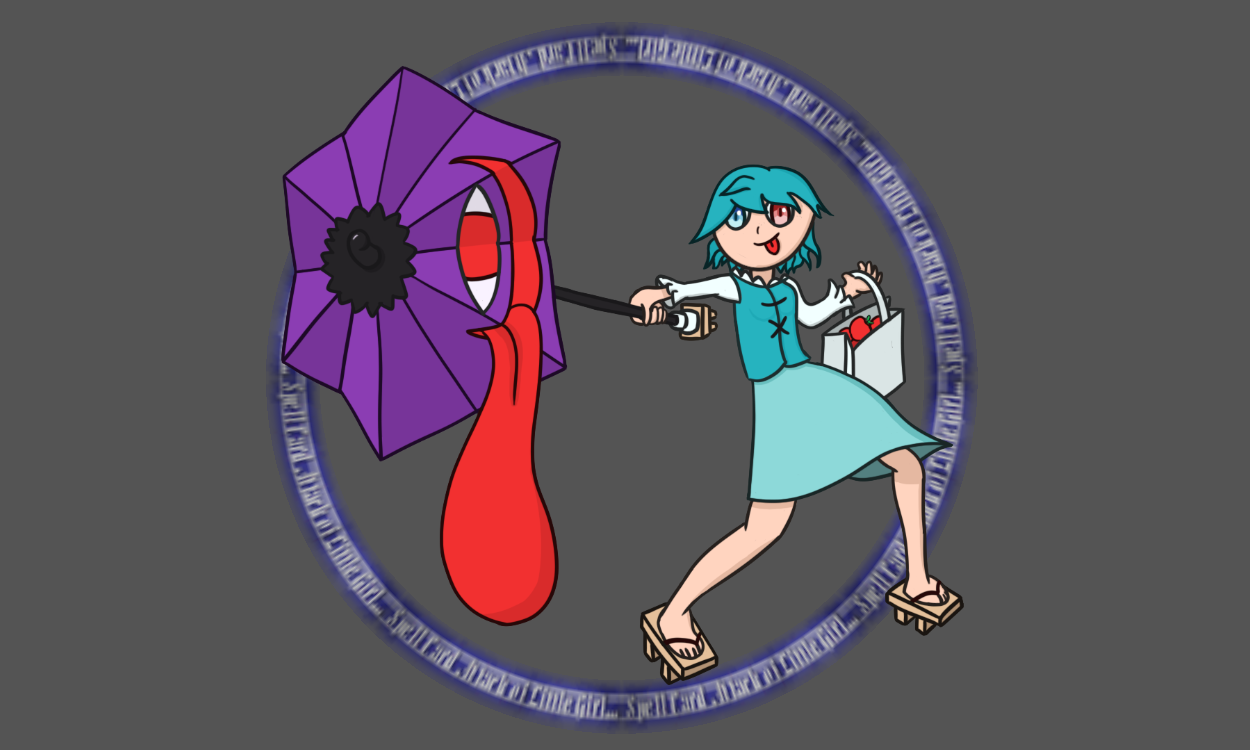
Ring Shader Tutorial
Quick Access
Actually Properly Using Polar Coordinates
File Download
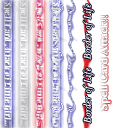
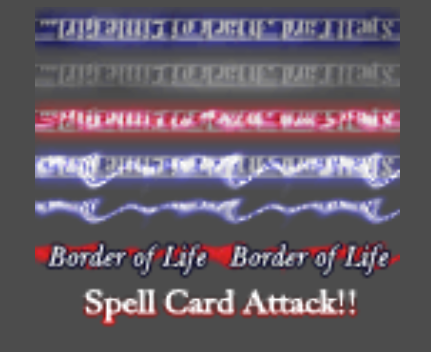
The sprite being used for this tutorial can be found in the image below.
Assumed Knowledge
Creating the actual file and navigating Godot in general will be assumed knowledge.
Some stuff will be glossed over which you can keep reading at the official docs.
Shaders 101
We will be looking at fragment shaders as that’s all that’s relevant for this and is also the most important in general.
The way that sprites are drawn in Godot is that all Sprites are quads with 4 vertices. Each of these vertices has some value called UV which is a Vector2 spanning from (0, 0) to (1, 1). Pixels on this face take on the UV values with a weighted average between the points on the surface. Using UV for the red and green channels on the sprite can be seen below. (Note: Just like how Godot has (0, 0) on the top left, this is the same here.) 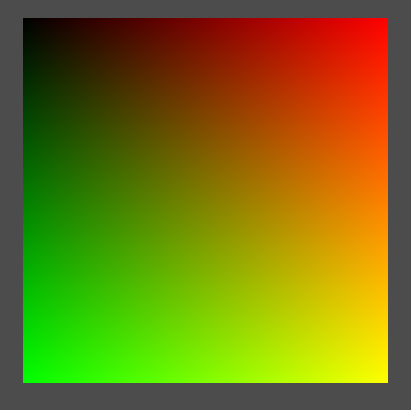 To actually do something useful with this
 UV value. You can try this with using the code below, replacing the existing fragment function.
void fragment() {
// Sample our texture with our current uv
vec4 color = texture(TEXTURE, UV);
// Set the pixel colour to the value we got from the texture
COLOR = color;
}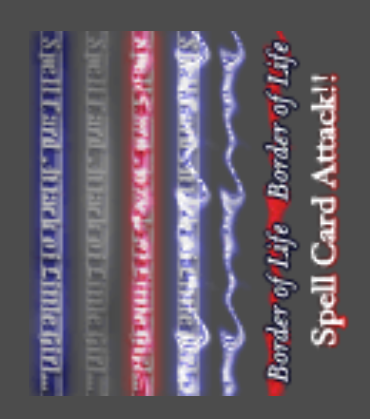 Yep that sure is what we normally see.
Image Manipulation
But how can we actually do something? What we’re currently doing is just passing in our UV into the texture function, which returns what the pixel colour should be at that position on a quad. But say, lets try rotating our indexing by 90° by giving the texture function a modification of our UV value.
For a 90° rotation, we can simply have our new x and y values be y and 1.0 - x respectively. In code, this looks like this:
void fragment() {
// Get uv for the region of the texture we want
vec2 uv = vec2(UV.y, 1.0 - UV.x);
// Sample our texture with our new uvs
vec4 color = texture(TEXTURE, uv);
// Set the pixel colour to the value we got from the texture
COLOR = color;
} That’s the general gist of it, using our actual
 UV value, we do some maths to pass into our texture function to get the right distortion.
The Actual Shader
Lets start by adding some uniforms (export variables in shader land). These allow us to control some values sent to the shader from the inspector without having to directly modify the shader script itself.
uniform float thickness : hint_range(0, 1) = 0.1;
uniform float spin_speed : hint_range(-10, 10, 0.1) = 0.2;
uniform float repeat_count : hint_range(1, 30, 1) = 8.0;

uniform float source_thickness : hint_range(0.0, 1.0) = 0.125;
uniform float source_offset : hint_range(0.0, 1.0) = 0.0;
Our goal is to grab a section of the texture and wrap it around in a ring with some amount of repeats. Lets break this down into steps.
Getting Texture Region
The first step then is to figure out how to get just a part of the texture. This is the reason for those last two uniforms we just added. source_thickness is how thick in the x-axis the section we’re grabbing is and source_offset is from where on the x-axis we’ll start grabbing from. The y-axis we will sample fully always so we do not need to touch that.
Recall that UV is the coordinates of where we are on the texture from 0 to 1 on each axis. We want to translate x = 0 to mean the start of the region of the texture we’re interested in and x = 1 to be the end region. Having 0.125 for our thickness means that we want to sample 1/8th of the texture in that axis. To make stuff easier to follow, lets break this off into its own function (totally not foreshadowing).
// Gets general uv coordinates and converts them to specific texture regions
vec2 get_texture_region(vec2 uv) {
  return vec2(source_offset + source_thickness * uv.x, uv.y);
}

void fragment() {
  // Get uv for the region of the texture we want
  vec2 uv = get_texture_region(UV);

  // Sample our texture with our new uvs
  vec4 color = texture(TEXTURE, uv);
  // Set the pixel colour to the value we got from the texture
  COLOR = color;
}
Using this code we see the following:
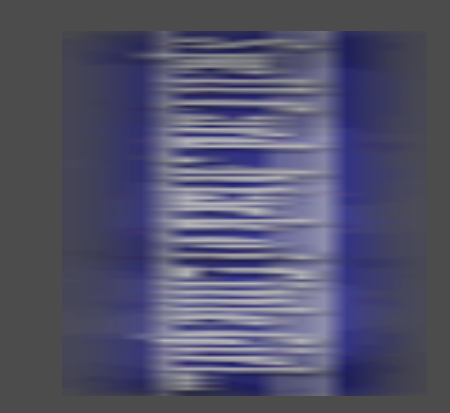
Though, it is pretty inconvenient that its vertical. It would be much easier for us if it was horizontal for maths reasons. Luckily we already figured out how to do that in an earlier section so we can modify our function.
// Gets general uv coordinates and converts them to specific texture regions
vec2 get_texture_region(vec2 uv) {
  return vec2(source_offset + source_thickness * (1.0 - uv.y), (1.0 - uv.x));
}
For complicated maths reasons we’re not exactly using the same formula. Surface level explanation is that the way we’re going to make the ring causes another flip to happen so we do it twice. An alternative you can use instead is below where the ring will be flipped inside out, which may be the desired visual you want, especially if you are going to have text in the ring.
// Gets general uv coordinates and converts them to specific texture regions
vec2 get_texture_region(vec2 uv) {
  return vec2(source_offset + source_thickness * uv.y, uv.x);
}
Getting Our Ring
Now that we have a function that can get a segment of a texture, we should now figure out how to put this on a circle.
When working with circles, we should try to almost always be in Polar Coordinates where instead of an x and y component, we have an r (radius) and theta (angle) component.
To make this process easier, we first want to adjust our UV coordinates. Currently our origin (0, 0) is at the top left. Because we’re working with circles, we want to move this origin to the middle of the sprite, and for even more convenience it would be great if we could have the edges of the sprite have radii of 1. This looks something like this:
vec2 uv_offset = 2.0 * UV - vec2(1.0);And now converting from Cartesian to Polar Coordinates, we can trivially (copy the formula from Wikipedia) do the following. For visualisation purposes we can also use these new theta and r values instead of UV when plugging it in get_texture_region.
// Converts raw angle and radius to appropriate uv values
vec2 get_polar_uv(float theta, float r) {
return vec2(theta, r);
}
void fragment() {
// Offset UV to make conversion to polar coordinates easier
vec2 uv_offset = 2.0 * UV - vec2(1.0);
// Convert to polar coordinates
float r = sqrt(uv_offset.x * uv_offset.x + uv_offset.y * uv_offset.y);
float theta = atan(uv_offset.y, uv_offset.x);
// Use polar coordinates to get uv values
vec2 polar_uv = get_polar_uv(theta, r);
// Get uv for the region of the texture we want
vec2 uv = get_texture_region(polar_uv);
// Sample our texture with our new uvs
vec4 color = texture(TEXTURE, uv);
// Set the pixel colour to the value we got from the texture
COLOR = color;
}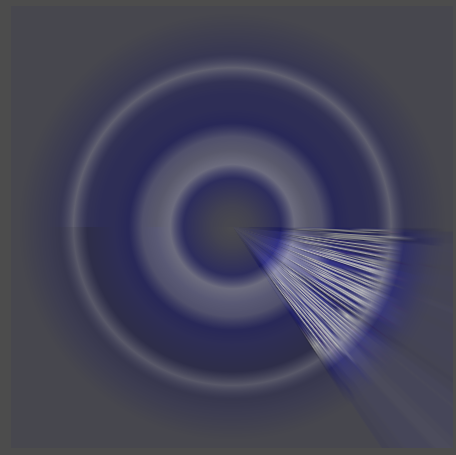 Hey we got a “ring”, though more work remains. Lets see what the issues here are.
- There’s only a very small section of the ring textured and the rest is just solid.
- The ring spans from the centre of the sprite to the edges.
- The texture is coloured even beyond the edges.
Actually Properly Using Polar Coordinates
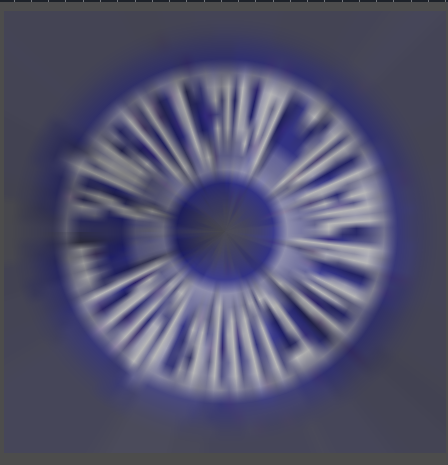
Currently we’re just dumping the theta and r values right into our function, neither of which are the correct values we want to use. This first point is the fault of the theta component.
theta is in radians, which ranges from -pi to pi. Recall that indexing the texture we want values from 0 to 1, so we must adjust that value range into the range we desire. I would strongly recommend trying to either derive this yourself or figure out why the below works as this kind of thinking is imperative with working with shaders.
// Converts raw angle and radius to appropriate uv values
vec2 get_polar_uv(float theta, float r) {
  return vec2((theta + PI) / TAU, r);
}
Ring Thickness
Our second point (and third point) is of issue from using the radius value directly. This occurs because the centre of the sprite has a radius of 0 and we’re just directly using that to sample our texture. Similarly, on the corners of our sprite, the radius goes beyond 1, which gets clamped to 1 when sampling. Lets start with fixing the first problem.
Here our uniform thickness comes into effect. We will be using this value to denote how much of the radius we actually want to use, effectively the difference between the outer and inner radius of our ring where the outer radius is hardcoded as 1 (we want to make the ring as large as possible).
This translates to meaning that our old 1 should stay as 1 but our new 0 should be our old 1 - thickness. Visualised that is as below where blue is old and green is new. Deriving the formula is left as an exercise to the reader. 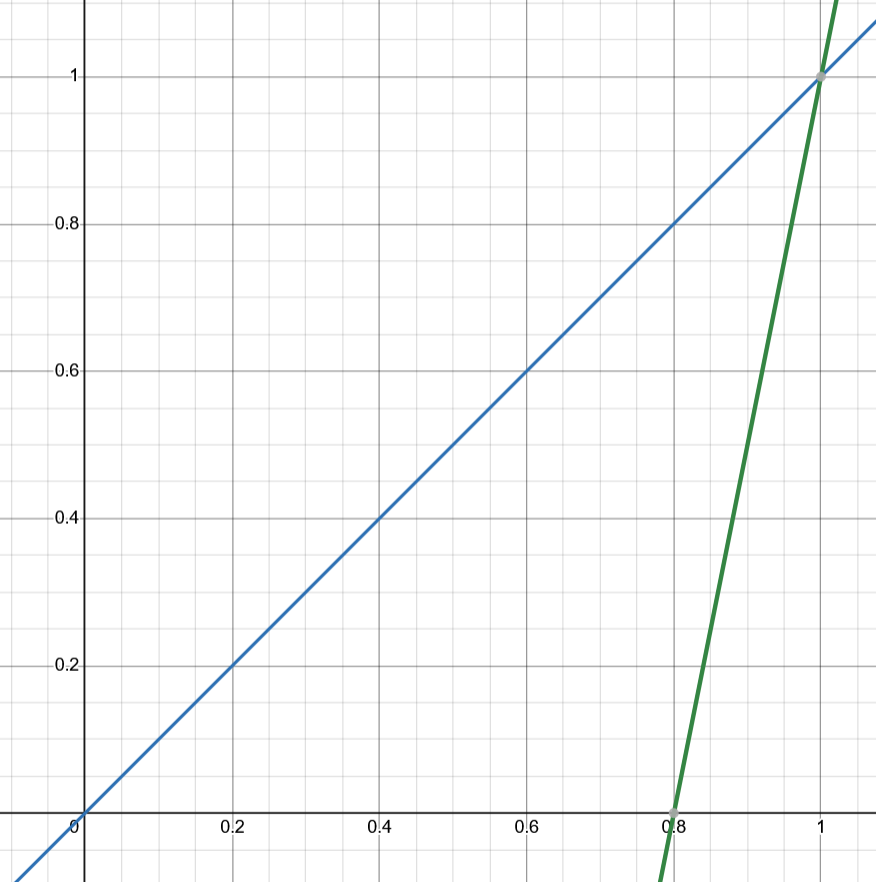
// Converts raw angle and radius to appropriate uv values
vec2 get_polar_uv(float theta, float r) {
  return vec2((theta + PI) / TAU, (thickness - 1.0 + r) / thickness);
}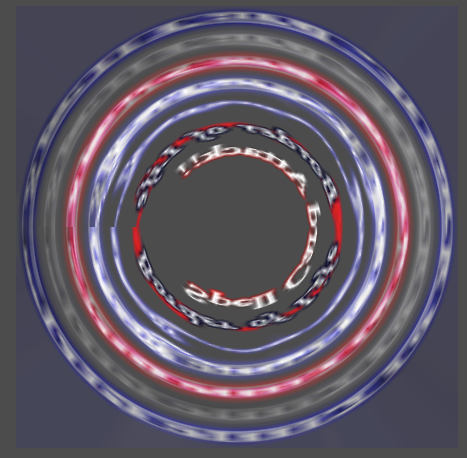
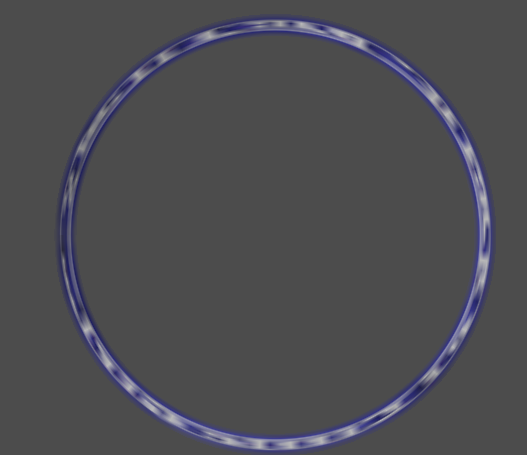
Why is the image blue? This gets caused because there is a pixel on the very edge of the region of the texture we’re sampling and we’re clamping our radius values to be between 0 and 1, regions where we have some pixels. To fix this we can simply just have our sprite be transparent when we have Polar Y coordinate exceeds 0 and 1.
Branching in Shaders
You may have heard to avoid using branches in shaders at all costs. While this is generally good advice, this is primarily applicable for large branches in logic rather than small momentary branches. For cases like this it can be slower forcing yourself not to use branches.
void fragment() {
  // Offset UV to make conversion to polar coordinates easier
  vec2 uv_offset = 2.0 * UV - vec2(1.0);

  // Convert to polar coordinates
  float r = sqrt(uv_offset.x * uv_offset.x + uv_offset.y * uv_offset.y);
  float theta = atan(uv_offset.y, uv_offset.x);

  // Use polar coordinates to get uv values
  vec2 polar_uv = get_polar_uv(theta, r);

  // Get uv for the region of the texture we want
  vec2 uv = get_texture_region(polar_uv);

  // Sample our texture with our new uvs
  vec4 color = texture(TEXTURE, uv);
  // Set the pixel colour to the value we got from the texture
  COLOR = color;

  // Have the sprite be transparent if beyond bounds
  if (polar_uv.y <= 0.0 || polar_uv.y >= 1.0) {
    COLOR.a = 0.0;
  }
}
Final Touches
We’re almost there now, though we have some finishing touches to do.
Ring Looping
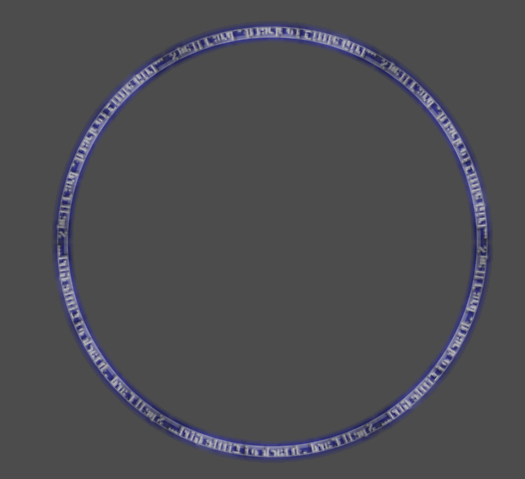
First obvious issue is that our texture is very stretched around the ring and as a result very blurry. This is because we’re only looping the texture around once. It would be ideal if we could repeat it somehow.
Introducing the mod function. This function effectively gets the “remainder” of a division.
When used with value 1 on y=x, we get a very simple sawtooth where it loops everytime it exceeds 1.
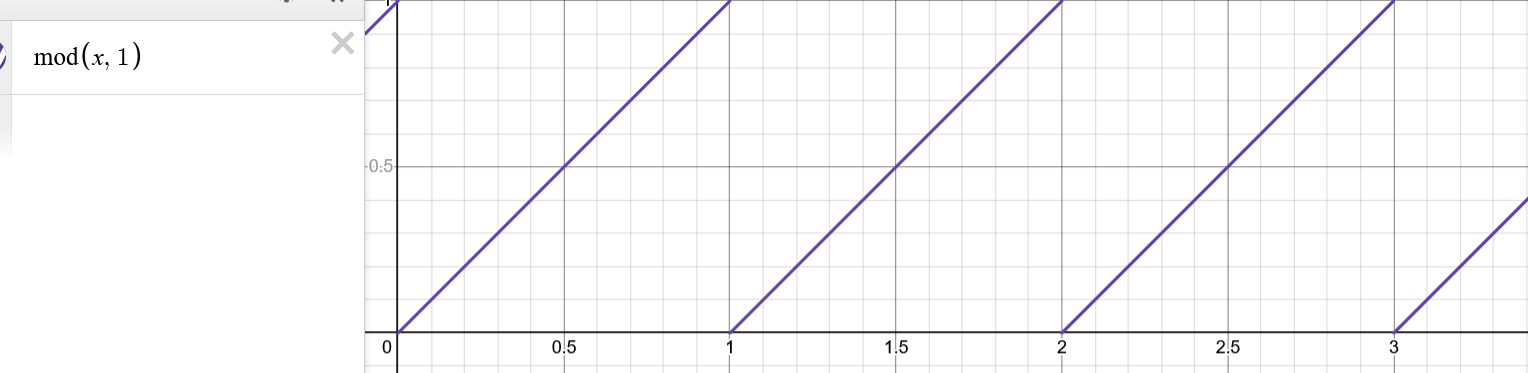 But since our uv values don’t ever exceed 1, we need to slightly modify this. The way we can force it to loop more is to simply have the function exceed 1 faster. By simply adding a coefficient to the front we see that it loops way faster.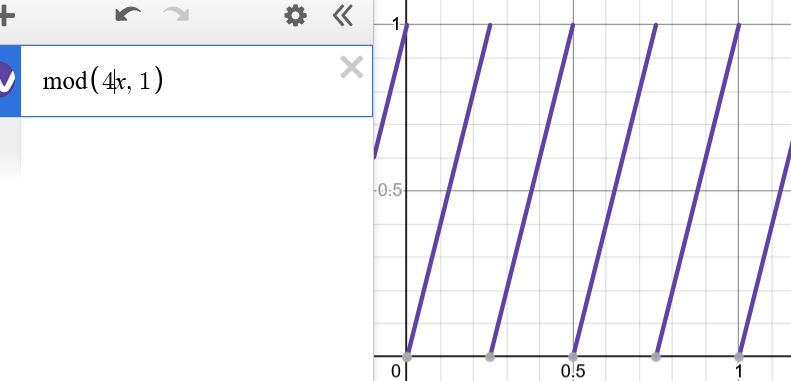
Applying this to our shader is as follows:
// Converts raw angle and radius to appropriate uv values
vec2 get_polar_uv(float theta, float r) {
  return vec2(mod((theta + PI) / TAU * repeat_count, 1.0), (thickness - 1.0 + r) / thickness);
}
Rotation
It looks almost ready but we’re just missing it rotating. Godot shaders offer us a TIME variable which is effectively how much time has passed since creation of the material, and loops occassionally. We can use our spin_speed uniform to control the rate at which we spin. If you’ve taken algebra the idea of f(x - t) offsetting f(x) by t on the x-axis should be familiar. We’re effectively doing this where t here for us is time.
// Converts raw angle and radius to appropriate uv values
vec2 get_polar_uv(float theta, float r) {
  return vec2(
    mod((theta + PI) / TAU * repeat_count - TIME * spin_speed, 1.0),
    (thickness - 1.0 + r) / thickness
  );
}
I’d show the result but it’s just the same but it spins which I can’t exactly capture in an image.
Final Script
shader_type canvas_item;
// render_mode blend_add; // Uncomment this to make the ring additive.

uniform float thickness : hint_range(0, 1) = 0.1;
uniform float spin_speed : hint_range(-10, 10, 0.1) = 0.2;
uniform float repeat_count : hint_range(1, 30, 1) = 16.0;

uniform float source_thickness : hint_range(0.0, 1.0) = 0.125;
uniform float source_offset : hint_range(0.0, 1.0) = 0.0;

// Gets general uv coordinates and converts them to specific texture regions
vec2 get_texture_region(vec2 uv) {
  return vec2(source_offset + source_thickness * (1.0 - uv.y), (1.0 - uv.x));
}

// Converts raw angle and radius to appropriate uv values
vec2 get_polar_uv(float theta, float r) {
  return vec2(
    mod((theta + PI) / TAU * repeat_count - TIME * spin_speed, 1.0),
    (thickness - 1.0 + r) / thickness
  );
}

void fragment() {
  // Offset UV to make conversion to polar coordinates easier
  vec2 uv_offset = 2.0 * UV - vec2(1.0);

  // Convert to polar coordinates
  float r = sqrt(uv_offset.x * uv_offset.x + uv_offset.y * uv_offset.y);
  float theta = atan(uv_offset.y, uv_offset.x);

  // Use polar coordinates to get uv values
  vec2 polar_uv = get_polar_uv(theta, r);

  // Get uv for the region of the texture we want
  vec2 uv = get_texture_region(polar_uv);

  // Sample our texture with our new uvs
  vec4 color = texture(TEXTURE, uv);
  // Set the pixel colour to the value we got from the texture
  COLOR = color;

  // Have the sprite be transparent if beyond bounds
  if (polar_uv.y <= 0.0 || polar_uv.y >= 1.0) {
    COLOR.a = 0.0;
  }
}